From saving links to an active inbox: a smarter bookmarking workflow
Collect less, use more. This guide covers setting up an automated bookmarking lifecycle that crawls pages and shares them in a Matrix room.
Overview
I've been saving URLs in different places for a long time. Sometimes to share them, sometimes to aggregate ideas, sometimes to read later. Truth is, we collect more than we use and all these links end up in a cemetery before I can sort and process them. I needed an inbox I could automate.
There are several bookmark managers available and I spent some time looking at them. I wanted to self-host and automate some tasks like sharing bookmarks tagged X in a Matrix room, while avoiding duplicates.
A few months ago I discovered Karakeep, an open-source bookmark manager, with a Chrome extension and an iOS app. At the time it didn't have all features I needed. They are now available or under development, thanks to the active community.
So, I decided to give Karakeep and n8n a try on a weekend project.
Architecture
Before touching the infrastructure, we must understand the topology of the stack. Karakeep operates as a multi-tiered architecture that relies on headless browser isolation and search indexes.
Here is what we're gonna build:
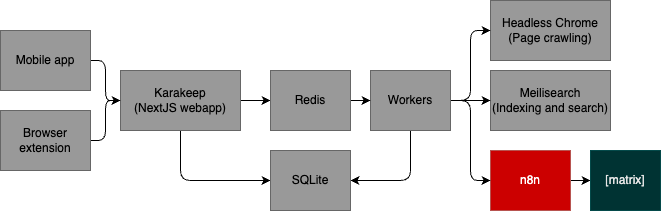
Note: Karakeep relies on SQLite only but developers have approved Postgres and a PR is on its way.
Preparation
- Create a DNS record for karakeep:
karakeep.domain.tld. - Read the security considerations related to web crawling and multi-users.
- Ensure your Matrix and n8n instance are ready and available over HTTPS.
Install Karakeep on Kubernetes
The Karakeep repository contains the sources and the Kustomize manifests. The team also maintains a Helm chart based on a template Chart.
The cluster I use runs with Traefik and Cert-Manager, so I picked the Kustomize approach because it is faster to add my own manifests.
Environment variables can be set using the .env.
Secrets must be generated beforehand:
APPLICATION_SECRET_KEY="<generate-key>"MEILISEARCH_MASTER_KEY="<generate-key>"
The documentation comes with a troubleshooting page if needed.
Administration first steps
Note: Users cannot change their username or email, so double check the values before creating the user.
- Create an admin user by signing up first.
- Create a tenant by signing up second.
- Disable sign up:
APPLICATION_DISABLE_SIGNUPS=true
Understanding the basics
Entries:
- Karakeep separates text entries (Notes) and url entries (Bookmarks). A note is a multi-line entry with more than a URL, while a bookmark is just a link. That little detail is important to keep in mind when creating entries because the crawler won't run on a note. However, a bookmark can be edited to add a notes!
- Open bookmark first instead of opening link: Settings → User Info → Bookmark Click Action → Open Bookmark Details
Tags:
- Adding tags comes after an entry is created. There is currently no way to add tags on creation.
- When playing around with Rules, one cannot act on an "entry that has no tag".
Lists:
- Entries can belong to one list only.
- Collaborations are possible on lists by inviting other users. The list owner can promote other users to owner or admin.
- Lists can have children (sub-lists). Developers already approved the development for the feature to collaborate on sublists.
Productivity:
- Install Chrome extension
- Install iOS app
Connecting Karakeep to n8n via Webhooks
Understanding the lifecycle

- Trigger event: A bookmark is added to Karakeep. It spins up Chrome headless, parses and extracts the page and generates an event
bookmark.crawled. - Webhook: Karakeep sends an HTTP
POSTrequest containing a light payload to n8n. - Authentication: The n8n Webhook node validates the request against Header Authentication:
Authorization: Bearer <token>. - API call: n8n sends an authenticated HTTP
GETrequest back to the Karakeep API to retrieve the complete object of a bookmark.
Webhook configuration on n8n
1. Configure the n8n Webhook node
- Node type:
Webhook - HTTP Method:
POST - Authentication:
Header Auth - Credentials setup:
- Create a new credential.
- Name:
Authorization - Value:
Bearer YOUR_SECRET_TOKEN.
- Name:
- Execution: Save the node and copy the Production URL or Test URL for the next step.
- Create a new credential.
2. Configure Karakeep webhook settings
- Navigate to Settings → Webhooks → Add Endpoint in your Karakeep instance.
- Target URL: Paste the URL copied from your n8n Webhook node.
- Secret / Token: Paste only your raw token string (Do not include the word Bearer or spaces here; Karakeep appends the standard prefix automatically).
- Trigger events:
crawled,created,edited.
Note: Using
createdexecutes too quickly, before Karakeep finishes fetching page summaries, titles, and screenshots.crawledensures the full webpage data is already processed.
Fetching complete bookmark content
Create a Karakeep API Key
Go to your Karakeep account settings and generate a new API Key.
Configure the n8n HTTP Request Node
Add an HTTP Request node immediately following your Webhook node.
- Method:
GET - URL (Expression):
https://karakeep.domain.tld/api/v1/bookmarks/{{ $('On: Bookmark').item.json.body.bookmarkId }} - Authentication: Predefined credential type
- Credential Type: Header Auth
- Credential Parameters:
- Name:
Authorization - Value:
Bearer <YOUR_KARAKEEP_API_KEY>.
- Name:
Note:
The object payload does not contain lists. Karakeep maintains a structural separation between items and collections. To locate which list the processed bookmark belongs to, you must fetch all lists and filter them inside your workflow.
Connecting n8n to Matrix
Create a Matrix bot
To protect your infrastructure's identity, always deploy isolated bots with specialized permissions rather than using your own profile.
- Create a Matrix user for the bot from the homeserver:
register_new_matrix_user \ -u "$USERNAME" \ -p "$PASSWORD" \ -c /data/homeserver.yaml \ http://localhost:8008 - Get Matrix bot access token by logging in and fetching the token in Settings → Help & About → Advanced → Access Token
- Invite the Matrix bot to the room where you want to share bookmarks
- Join the room with the bot (need to accept the invite from the web UI) otherwise Matrix bot won't be able to send messages to the room.
- Create credentials for Matrix bot in n8n
Credentials for Matrix bot
- Create credentials for Matrix bot
- Go to Settings → Credentials → Create Credentials
- Credential Type: Matrix Bot
- Credential Parameters:
- Name: Matrix Bot
- User ID:
@bot:your-domain.com - Access Token:
YOUR_MATRIX_BOT_ACCESS_TOKEN
Sending Matrix message
Use the Matrix Bot node to send the bookmark to the Matrix room.
The message in the node can be:
{{ $('Fetch: Bookmark Details').item.json.content.title }}

{{ $('Fetch: Bookmark Details').item.json.content.description }}

{{ $('Fetch: Bookmark Details').item.json.content.url }}
Production readiness
Well, this is a prototype for now. When it comes to production, here are some things to consider.
Documentation
Document this software and its operations. What is not documented does not exist.
Backup and restore
Because Karakeep relies on a local SQLite, backup the file /data/karakeep.db.
Don't forget to lock the file first or the database will corrupt itself.
Healthchecks and monitoring
An example of probes to add to the statefulset:
livenessProbe:
  httpGet:
    path: /api/health
    port: 3000
    scheme: HTTP
  initialDelaySeconds: 10
  timeoutSeconds: 1
  periodSeconds: 10
  successThreshold: 1
  failureThreshold: 3
readinessProbe:
  httpGet:
    path: /api/health
    port: 3000
    scheme: HTTP
  initialDelaySeconds: 10
  timeoutSeconds: 1
  periodSeconds: 10
  successThreshold: 1
  failureThreshold: 3
The path karakeep.domain.tld/api/health should show:
{ "status": "ok", "message": "Web app is working" }
Increase crawlers and resources
Increase the CRAWLER_NUM_WORKERS (default 1).
You can also increase pods' resources.
Upgrades
Follow the official documentation for upgrading Karakeep.